Day-Based Alarms
Set recurring alarms for specific weekdays or weekends.
Overview
Day-Based Alarms are the foundational scheduling engine of ReAlarm. Designed for strict weekly routines, this alarm type allows you to schedule precise wake-ups tied exclusively to the specific days of the week you dictate.
By fundamentally separating your weekday corporate hustle from your weekend rest, you never have to remember to manually toggle alarms on Friday nights again. ReAlarm handles the repetitive calendar math for you automatically.
ISO Week Filter PRO
The ISO Week Filter is a powerful PRO feature that lets you control which calendar weeks your day-based alarm is active. This is perfect for bi-weekly schedules, alternating rosters, or any schedule that doesn't repeat every single week.
What Are ISO Weeks?
ISO weeks are a standardized international week numbering system (ISO 8601). Every year has 52 or 53 weeks, numbered W1 through W52/W53, always starting on Monday. The app shows the current ISO week number and its parity (odd/even) for quick reference.
Filter Modes
Every Week
Default mode. The alarm triggers on all selected days, every week, just like a standard day-based alarm.
Odd Weeks Only
The alarm only fires during ISO weeks 1, 3, 5, 7, etc. Perfect for bi-weekly alternating schedules.
Even Weeks Only
The alarm only fires during ISO weeks 2, 4, 6, 8, etc. The complement to odd-week scheduling.
Custom Weeks
Opens a full-screen visual calendar showing all ISO weeks with date ranges. Tap individual weeks to build a completely custom schedule.
Custom Week Picker Calendar
When you select 'Custom weeks', a beautiful full-screen calendar opens showing every ISO week for the current year. Each week cell displays its week number and the Monday–Sunday date range. Navigation arrows let you browse across years. Use 'Select All' / 'Deselect All' for quick bulk operations.
The current week is highlighted with a special border so you always know where you are in the calendar.
Week 53 Note: Some years have 53 ISO weeks. Week 53 is treated as an odd week. Both Week 53 and Week 1 of the following year may be odd at year boundaries.
Capabilities
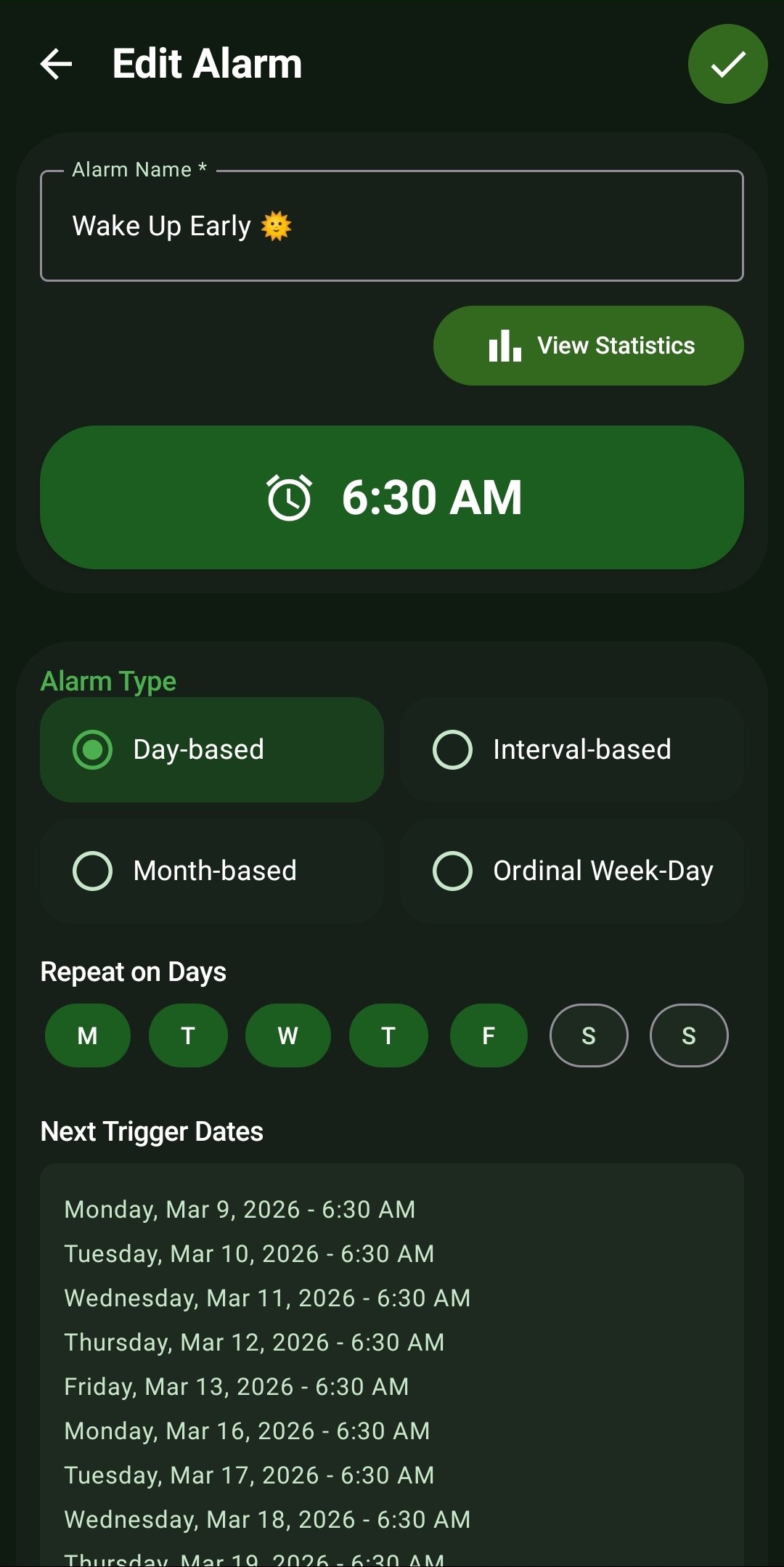
- Individual Day Selection: Tap dedicated circular toggles to instantly activate or deactivate any day of the week (Mon, Tue, Wed, Thu, Fri, Sat, Sun).
- Predictive Trigger List: Automatically calculates and displays a scrolling list of the next 10 exact dates and times the alarm will sound, removing all guesswork from your schedule.
- Custom Alarm Naming: Assign specific names like 'Wake Up Early 🌞' or 'Gym Time' to easily identify the alarm's purpose when it rings.
- Seamless Statistics Integration: Instantly jump to your historical wake-up performance data directly from the alarm edit screen via the 'View Statistics' button.
- ISO Week Filter PRO: Filter your day-based alarm to only trigger during specific ISO calendar weeks — odd weeks, even weeks, or a custom selection of individual weeks from a visual full-screen calendar picker.
How to Setup
- In the 'New Alarm' or 'Edit Alarm' screen, ensure the Alarm Type is set to the default 'Day-based' radio button.
- Tap the large green time display to set your precise target wake-up hour and minute (e.g., 6:30 AM).
- Under the 'Repeat on Days' section, tap the circular indicators for the specific days you want this alarm active (Green = Active, Outline = Inactive).
- Under the 'ISO Week Filter' section, select your preferred filter mode: Every, Odd, Even, or Custom.
- If you selected Custom, tap 'Select' to open the full-screen ISO week picker calendar and choose your desired weeks.
- Review the 'Next Trigger Dates' list at the bottom to visually confirm your schedule before hitting the checkmark to save.
Use Cases
Standard Work Week: Configure a 6:30 AM alarm strictly spanning Monday to Friday, leaving your weekends entirely free of interruptions.
Intermittent Fasting & Diets: Set recurring alerts for specific workout days or meal-prep days (e.g., Monday, Wednesday, Friday).
Weekend Activities: Configure a separate, later 9:00 AM alarm exclusively for Saturday morning farmers markets or Sunday church.
Screenshots
Frequently Asked Questions
What happens if I don't select any days under 'Repeat on Days'?
Why does the 'Next Trigger Dates' list skip some days?
Can I have different Day-Based alarms active at the same time?
What is the ISO Week Filter and how does it work?
Ready to Upgrade Your Morning?
Install ReAlarm today to unlock Day-Based Alarms for free.
Get it on Google Play